
Products· Utilities
Expand Photo
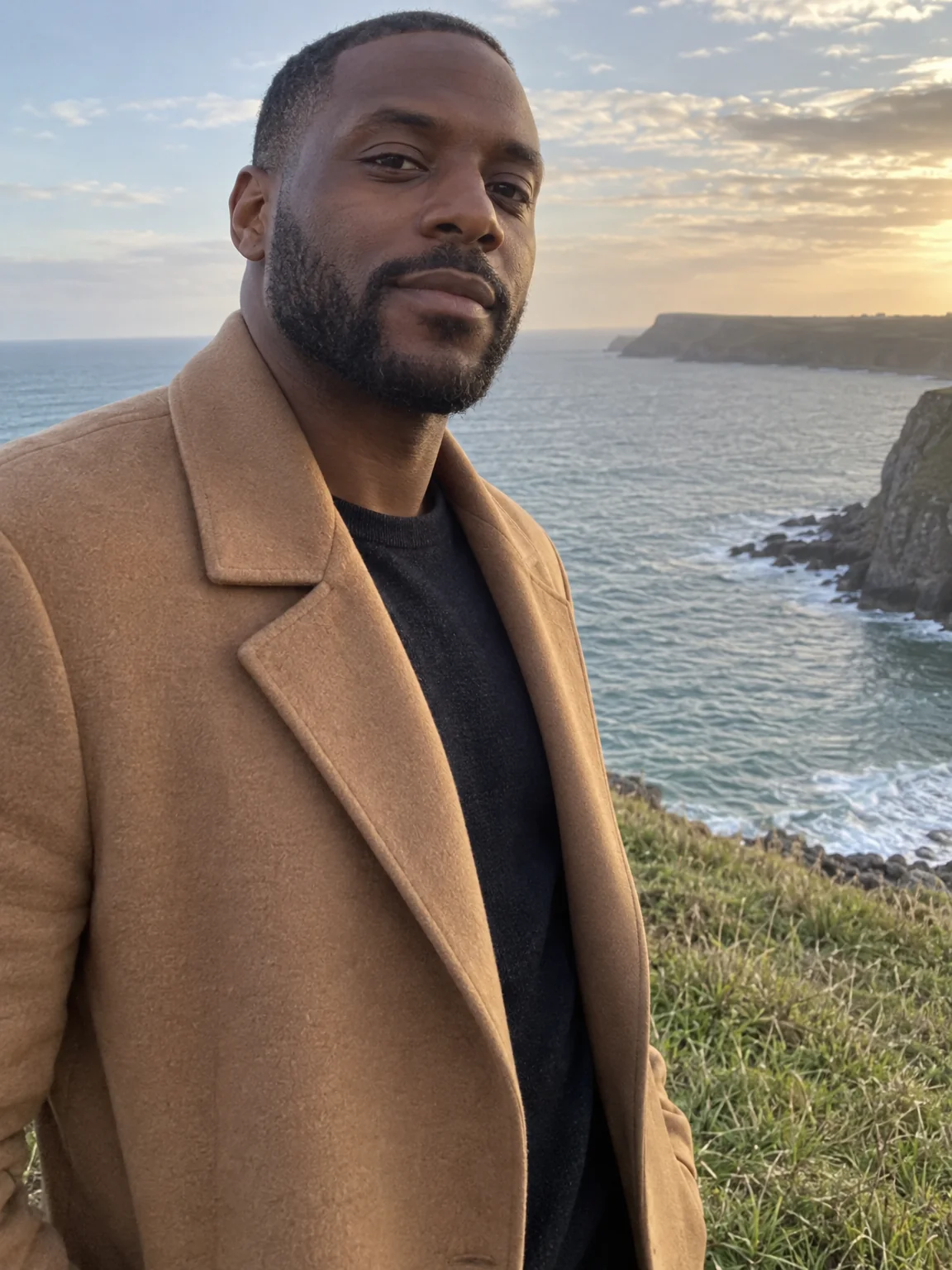
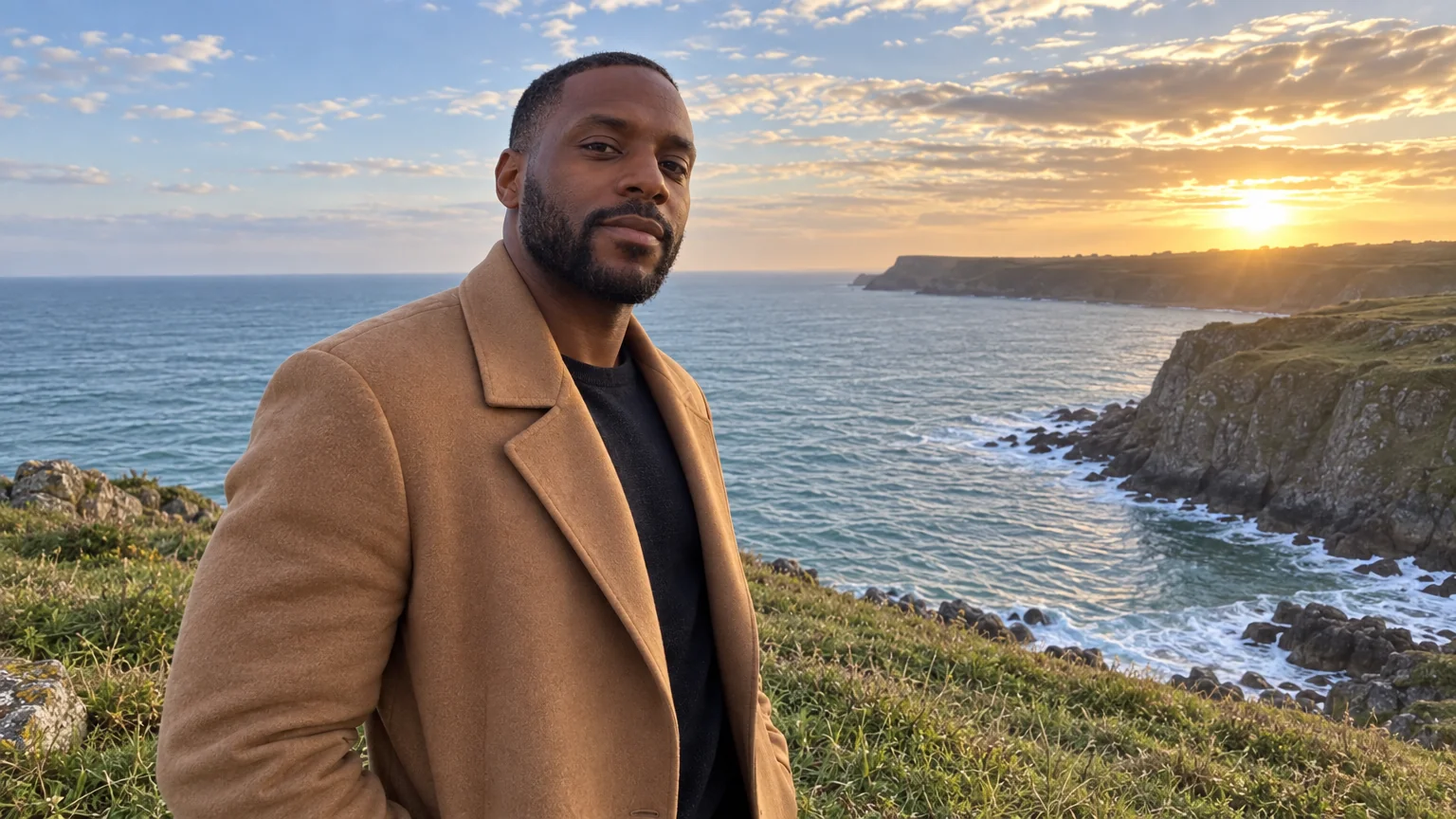
Extend a photo beyond its edges to a new aspect ratio, filling the added area with a seamless continuation of the scene — a portrait becomes a banner, a square becomes a story.
4 free credits — one Standard run of any tool. No card needed.
What you'll choose
- Photos you upload: Your photo
- Expand ToWide 16:9Portrait 3:4Square 1:1Portrait 4:5Portrait 2:3Story 9:16Landscape 4:3Landscape 3:2
- 16:9 output
Cost per result
- StandardQuick results for everyday use4cr
- ProFiner skin, fabric and surface detail12cr
- MaxThe most detail, for large prints44cr
- Edit it with words, or send it into any other tool
- Standard, Pro and Max quality
- Saved to Your photos, downloadable full size
- Print-size upscales and short videos
How it works
- 01
Upload the photo whose photo needs to grow.
- 02
Choose the aspect ratio to expand to — wide, square or tall.
- 03
Shoot, compare with the original, and download or upscale for print.
Widen a tight crop — the scene continues naturally into any aspect ratio
The photo is perfect but the shape is wrong: a portrait that needs to be a website banner, a square that has to become a 9:16 story, a headshot cropped so tight there is no room for a title. Expand Photo extends the picture outward. Choose the target ratio and the Studio continues the scene beyond the original edges — more wall, more sky, more floor, more of the blurred background — so the result looks like it was shot wider in the first place. Everything inside the original edges is unchanged.
Eight targets are available, from wide 16:9 and 3:2 through 4:3, square and the portrait ratios to story 9:16. It is the fix for a group photo that lost someone at the edge, a couple photo that needs to become a holiday card, a headshot that must fill a LinkedIn banner, and any social post that has to be re-cut for another platform. The tool reads the direction of the light and the texture of the surroundings so the extension has no seam.
A Standard run costs 4 credits and takes seconds; Pro and Max quality reproduce complex backgrounds such as foliage, fabric and architecture with more fidelity. Expand sits at the end of most chains — shoot, retouch, expand to the final photo, upscale — and it is the safest way to get a wide image out of a portrait tool such as Professional Headshot. Compare against the original with one tap before downloading.
Good to know
Works well with
- Example coming soonfrom 3 credits
Image Upscaler
Enlarge any photo to 4, 8, 16 or 32 megapixels for prints and screens
 from 4 credits
AI Photo Editor
Edit any photo with a sentence — the tool for everything without its own button
 from 4 credits
Background Changer
Describe a new backdrop and step into it with matching light and perspective
 from 4 credits
Group Photo
Everyone in one photo — 2 to 4 people from separate photos, no scheduling needed