
Cars· Retouch
Remove a Person
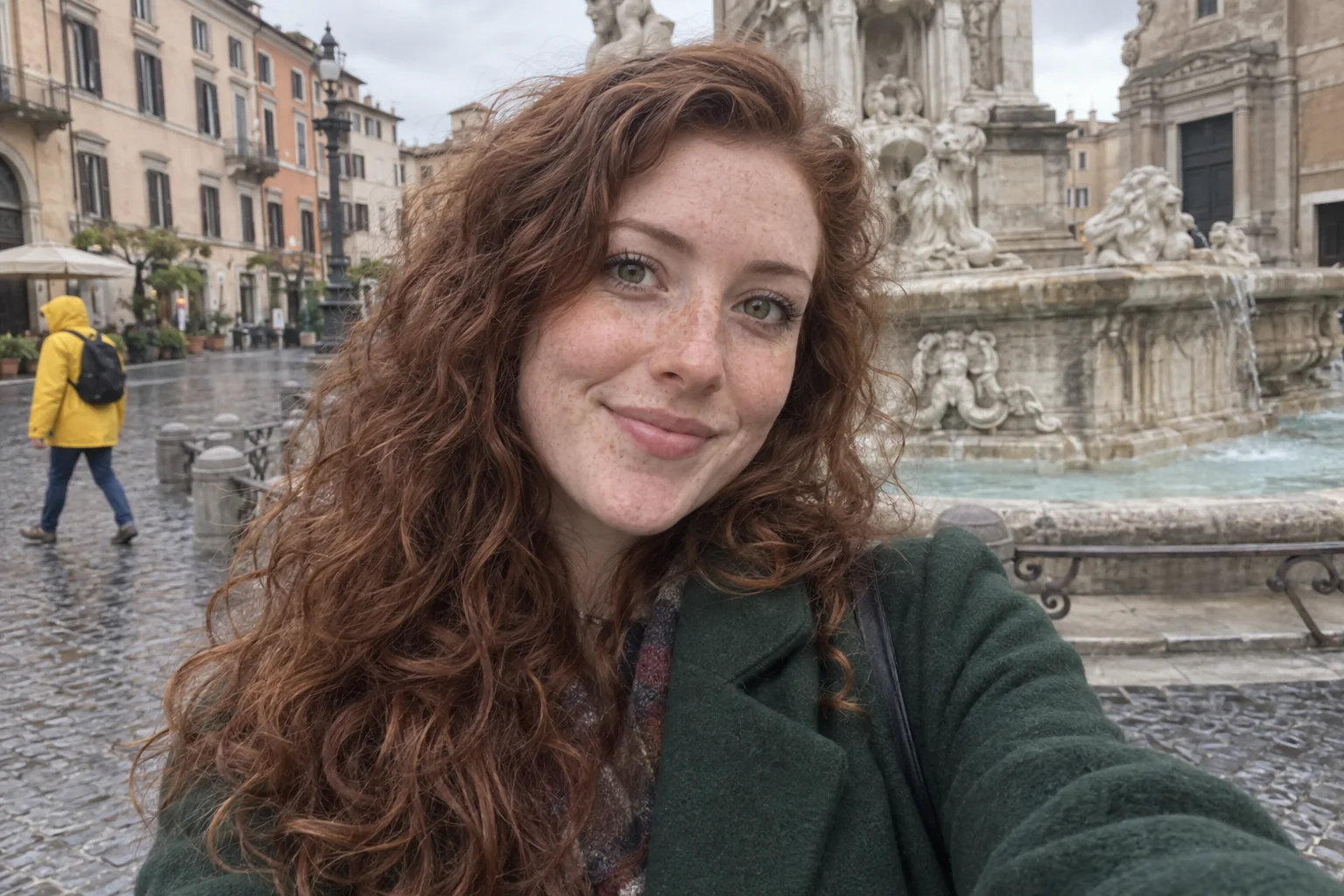
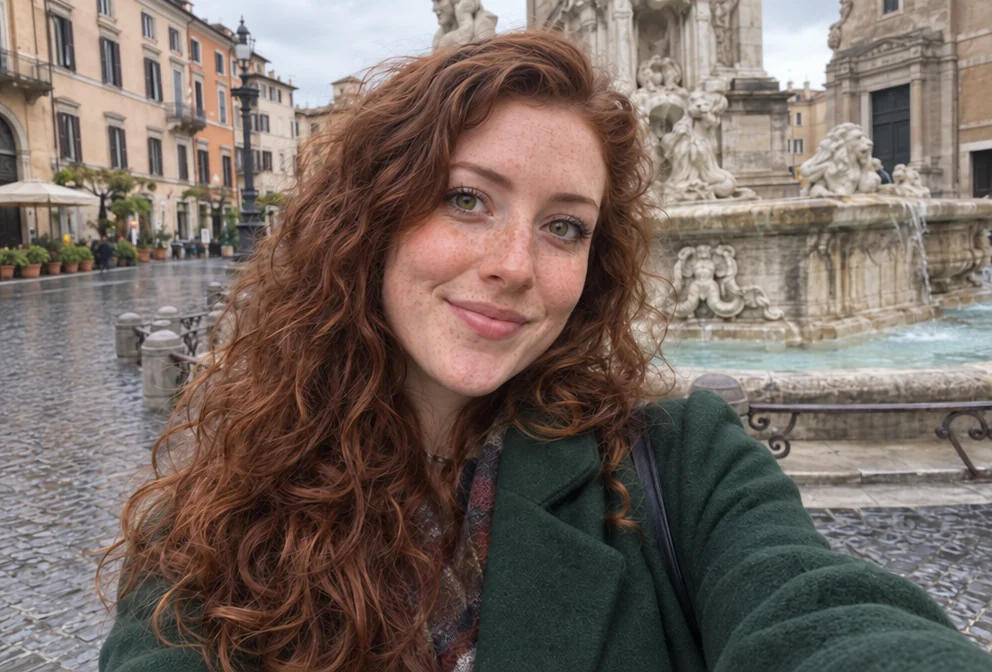
Remove a person from a photo by describing who to remove. The space is filled naturally to match the surrounding scene, lighting and perspective, and everyone else stays unchanged.
4 free credits — one Standard run of any tool. No card needed.
What you'll choose
- Photos you upload: Your photo
- Person to Remove
Cost per result
- StandardQuick results for everyday use4cr
- ProFiner skin, fabric and surface detail12cr
- MaxThe most detail, for large prints44cr
- Edit it with words, or send it into any other tool
- Standard, Pro and Max quality
- Saved to Your photos, downloadable full size
- Print-size upscales and short videos
How it works
- 01
Upload the photo with the extra person in it.
- 02
Describe who to remove — by position, clothing or role in the picture.
- 03
Shoot, compare with the original, and download or tidy with Photo Retouch.
The stranger behind you, the ex beside you — gone, with the scene filled in
Some of the best photos have one person too many in them: a passer-by mid-stride, a stranger's shoulder, someone who is no longer part of the story. Remove a Person takes them out. Describe who to remove — by position, clothing or role — and the Studio erases them and fills the space naturally with what the scene would have shown: the wall, the beach, the crowd texture, the light and perspective of the surroundings. Everyone else in the picture is untouched.
Descriptions work best when they are unambiguous. "The person on the far left", "the man in the red jacket" and "everyone in the background" are clear instructions; "the tall one" is not. Where the removed person overlapped someone else — an arm on a shoulder, a hand in the picture — the Studio reconstructs the covered parts. It works on travel photos, group shots, wedding candids and street scenes, and it keeps the original aspect ratio.
A Standard run costs 4 credits and finishes in seconds; Pro and Max quality reconstruct complex backgrounds such as foliage, brick and crowds with more fidelity. For objects rather than people, Remove an Object is the companion tool; for adding someone back in, Add People does the reverse. Follow a removal with Photo Retouch to even out the photo, and compare against the original before downloading.
Good to know
Works well with
 from 4 credits
Remove an Object
Name the thing — a bin, a wire, a watermark of glare — and it's gone
 from 4 credits
Add People
Put the people from one photo into the scene of another, as if they were there
 from 4 credits
Photo Retouch
A clean professional finish for the whole photo — people, products, rooms, food
 from 4 credits
Expand Photo
Widen a tight crop — the scene continues naturally into any aspect ratio